 SpeedTest
1
TCP/IP settings
Looks for an active connection type and assigned interface addresses.
The SpeedTest iPhone app runs six focused checks in sequence, turning a vague connection problem into a shorter list of likely causes.
Review the checks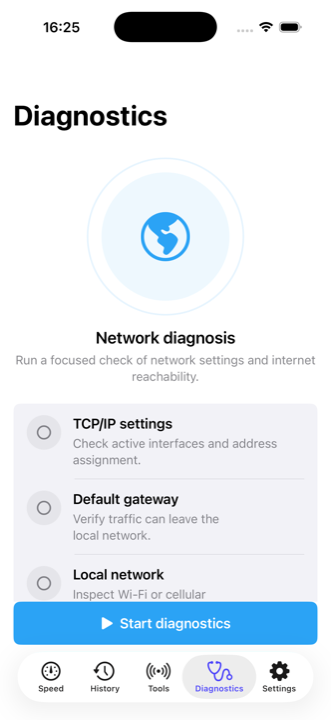
Looks for an active connection type and assigned interface addresses.
Checks whether traffic can reach a known public destination outside the local network.
Identifies whether Wi-Fi, cellular, or another path is active and reports local interface context.
Attempts to resolve a known public domain into one or more network addresses.
Contacts the speed-test service over HTTPS to confirm external reachability.
Retrieves the outward-facing address and provider information through ipwho.is.
A failed early check often makes later failures expected. If no active IP interface exists, DNS and public-internet checks will also fail. Start with the first failure rather than treating every red result as a separate problem.
Confirm Wi-Fi or cellular data is enabled. Reconnect to the network and check whether iOS shows a valid connection. A captive portal may require you to sign in before internet access works.
The device may be connected to a router without a working upstream link. Restarting or checking the router and modem is more relevant than changing DNS at this stage.
The network path exists, but names cannot be resolved reliably. A router, VPN, custom DNS profile, or provider resolver may be involved.
The lookup service may be unavailable or blocked even when normal browsing works. This result alone does not prove the internet connection is down.
Measure download, upload, and latency in your browser.